
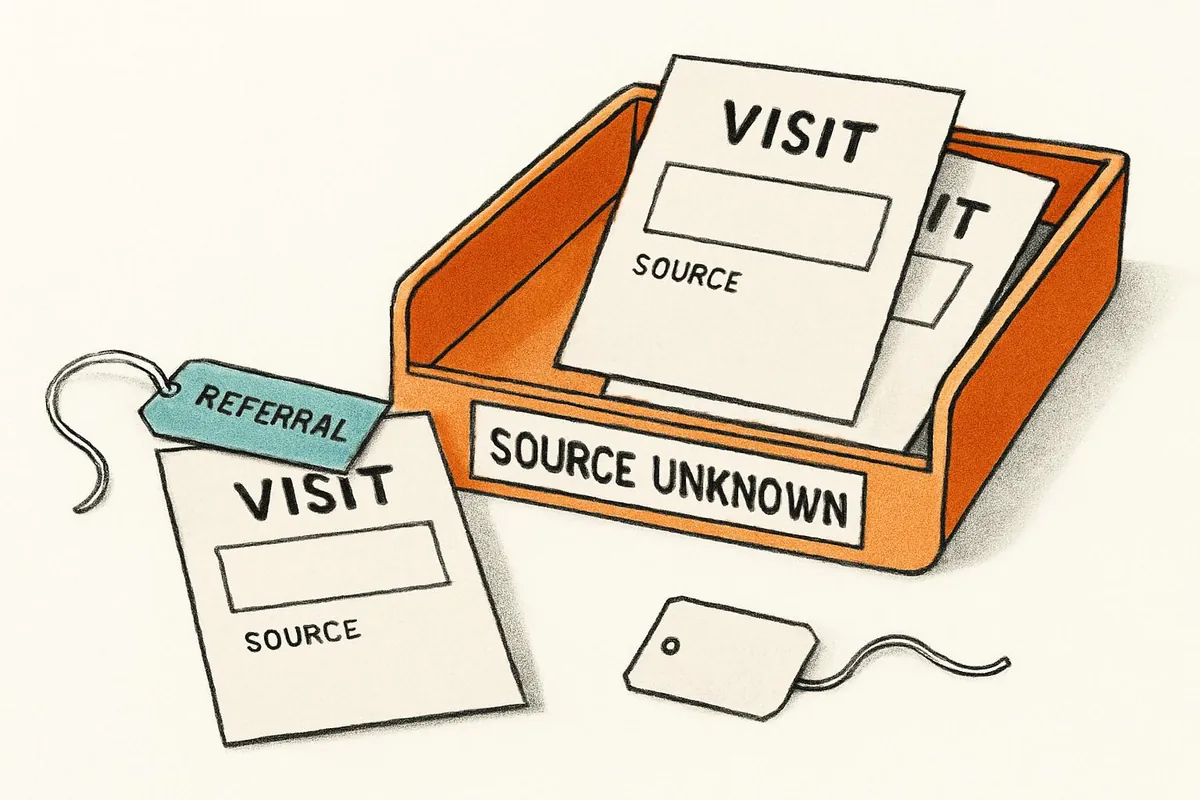
If your GA4 Direct traffic is climbing, it's tempting to give your brand awareness a little credit. People must be remembering you, right? Some probably are. Others may be arriving through links that lost their source information. And some may have discovered your company in an AI answer before ever visiting your website.
Those visits can look alike in a report, even though they call for different responses. Find out which visits you can trace and which tracking faults you can fix. Some people will have found you before your website could track them.
AI makes that last part harder to ignore. People can compare brands and make a shortlist in an AI chat, then visit a chosen company's site later. GA4 records the visit when it can. That doesn't mean it sees the earlier chat.
Why Direct Traffic Can Rise Without More Awareness
Before celebrating or worrying, check whether Direct sessions increased or just took up more of the chart. Suppose Direct stays at 1,000 sessions while total sessions fall from 10,000 to 5,000. Its share doubles from 10% to 20%, but you haven't gained a single Direct session.
When the number itself rises, remember what the label means. GA4's "(direct) / (none)" describes traffic without a clear referral source. It can include someone typing your address or opening a bookmark. It can also include a visit from an untagged document, a private message or a link whose campaign details disappeared during a redirect.
So Direct can rise when more people want to find you, when source details go missing, or when both happen. A campaign launch, website release or consent-banner update around the same date gives you something concrete to investigate. It doesn't establish the cause by itself.
The aim is to explain the change well enough to make a decision. Changing labels to make the Direct share look better can hide useful clues while leaving a tracking fault unfixed.
How AI Changes Brand Discovery and Attribution
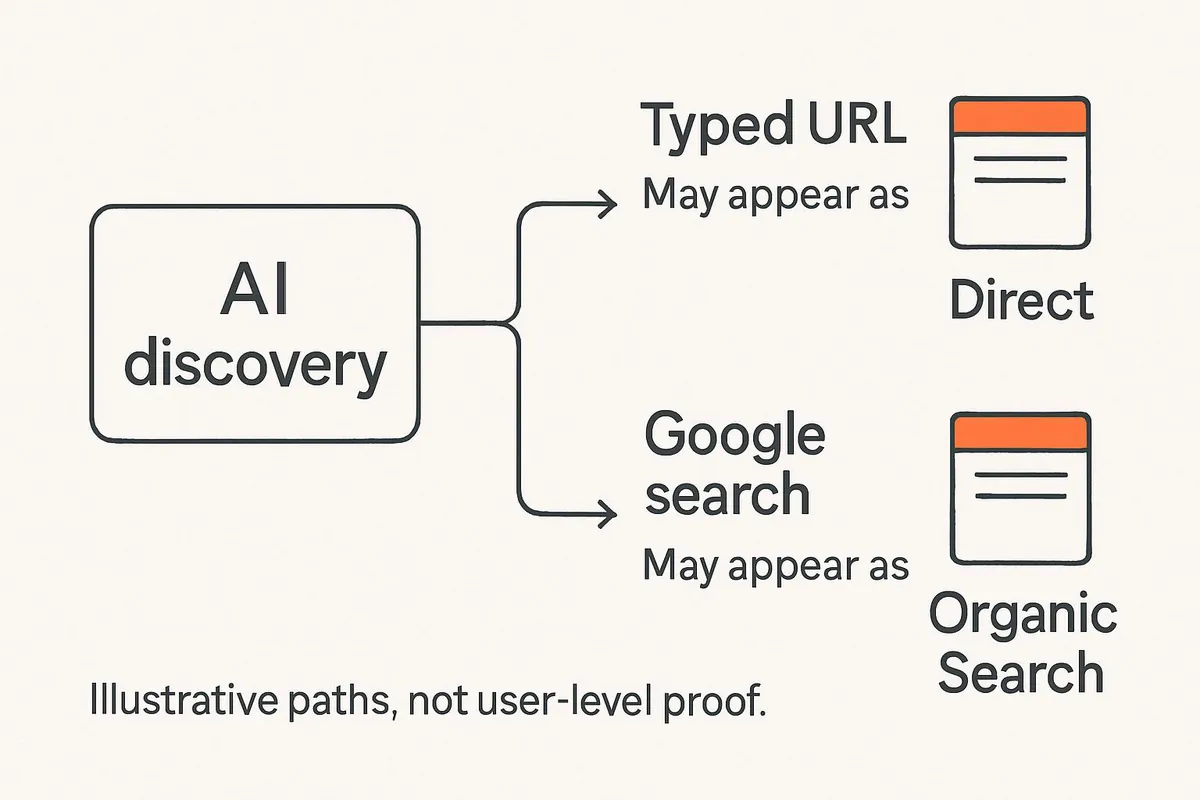
For example, picture a buyer asking an AI assistant which accounting tools suit a small agency. They read the comparison, remember one company's name and type its domain the next morning. If this is the first visit GA4 can measure and no source signal links it to the chat, GA4 may record Direct. The buyer found the brand before its website could track them.
A different buyer searches the company's name in Google after the same kind of AI answer. That visit can appear as Organic Search. AI may have helped both people find the brand, but GA4 records their visits under different channels.
GA4 can also tell where some AI visits came from. Its default channel group now includes AI Assistant for sources it recognizes. Google AI Overviews and AI Mode are excluded from that channel and included in Organic Search. If you look for AI visits only under Referral or Direct, you'll miss those GA4 puts in AI Assistant or Organic Search.
Even a typed return visit doesn't always create a Direct row. GA4 can keep an earlier non-direct source when the same user comes back within the applicable attribution window. Someone who clicks from an assistant and comes back through a bookmark may still be linked to that earlier source. This depends on whether GA4 can still recognize the user, the time window and the report you use.
Sometimes your tracking setup loses a source that it could have recorded. In other cases, someone first heard of you off-site, where your website tag had no chance to track them. Better tracking can fix lost source data. To learn how people found you off-site, you'll need more than a session's source label.
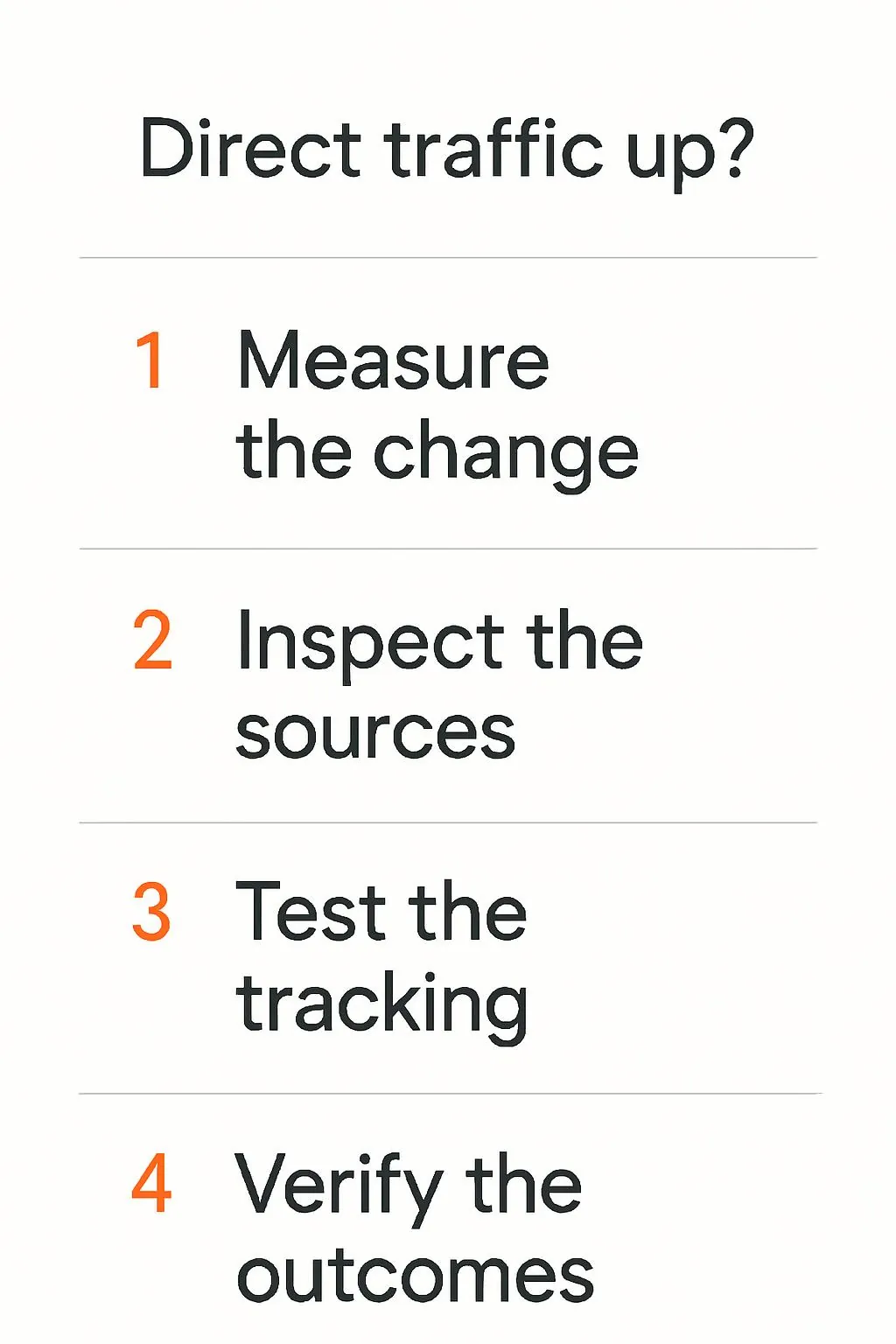
8 Checks to Explain a Direct Traffic Increase
Work through these checks before assigning the increase to AI. Several are quick enough to start with the reports and links you already have.
1. Use Session Data and Mark the First Increase
Open Traffic acquisition to check a spike in sessions. Use Session source / medium and Session default channel group. User acquisition's First user fields show how people first came to your site. A later visit may come from a different source.
Compare similar date ranges and record when Direct first changed. Add campaign launches, tag releases, site migrations and banner updates to the timeline. Check the number of sessions as well as their share of all visits. Changing the property's attribution model won't restore missing sources in these fields.
2. Find Which Landing Pages and Visitors Changed
Break Direct down by landing page, device, browser and country. Then look at engagement and key events, such as completed inquiries or purchases. If most new Direct visits start on a campaign page, check its links. A steady rise in homepage visits calls for a different search for the cause.
If visits come from an odd location or show little engagement, check your security and server data. It isn't enough to declare those visitors bots. GA4 filters out known bots on its own, but it may not catch every bot.
3. Inspect the AI Assistant Channel You Already Have
Review AI Assistant with its Session source / medium values. Check where those visits start and whether they lead to useful outcomes. You may find AI visits you'd miss by looking only at Direct.
If you made a custom AI channel before GA4 added its own, check its rules against the sources you now see. Use a custom group where it helps explain the data you get. A rule can change the group for a known source. It can't restore a missing referrer or reveal an earlier chat.
4. Tag the Campaign Links You Control
Use consistent source, medium and campaign labels on email and SMS links. Tag links in PDFs and QR codes too. Test the delivered link, including any tracking wrapper or shortener, instead of checking only the original URL in a planning sheet.
Keep paid ad click IDs intact where you use auto-tagging. Agree on the labels your team uses so one newsletter doesn't appear under several slightly different sources. Leave campaign tags off links within your site. Your own menu doesn't bring people from a new outside campaign.
5. Test What Happens Before the First Page Is Measured
Follow a real campaign link through every redirect to its final page. Check that the campaign parameters stay in the URL and that the entry page sends the right data when it has permission to do so. Use your debugging tools to inspect the page location and referrer it sends.
A missing entry-page tag can mean the first measured page is further into the visit. A redirect may remove the campaign details you expected to preserve. Fix the fault you can reproduce, then test again in a fresh browser context. That helps keep earlier source history from confusing the result.
6. Review Booking, Checkout and Payment Journeys
If people move between domains you control, test whether cross-domain measurement still recognizes them as the same users. Check the Google tag setup on both sites. Make sure redirects keep the linker data that connects the visits.
A third-party payment provider is a different situation. It may belong in unwanted-referral settings so a payment return doesn't take credit for the visit. Test the full journey before changing exclusions. If you exclude a source that helped someone find you, you'll hide that source without fixing the missing data.
7. Check Consent Behavior With the Banner in Place
Use Tag Assistant to test what happens before a choice and after accepting or rejecting. Check that default settings apply before tags run and that updates match the person's choice. Look for unintended reloads or delayed entry-page measurement.
Rejecting a banner doesn't mean the visit will be Direct. Basic consent mode can block Analytics from sending data, while advanced mode can send measurements without cookies. What happens depends on the setup. Fix faults in how consent works and keep the person's choice intact.
8. Ask How People Found You and Compare the Evidence
Where it fits the buying journey, add a short discovery question to an inquiry or post-purchase form. Let people answer in their own words. You may learn that a customer first heard of you in an AI chat, even if GA4 recorded their visit as Direct or Organic Search.
Compare those responses with lead quality, branded search demand and AI visibility. Search Console now has a Generative AI performance report. It shows impressions in AI Overviews and AI Mode, with page and other breakdowns. It can help show that your site appeared in those features. It doesn't link a given impression to a later Direct visit.
Keep what customers tell you separate from GA4 source data. People can forget how they found you. If AI impressions and Direct traffic rise at the same time, that still doesn't prove that one caused the other. These clues may help explain the change, but they don't let you label every unknown source as AI.
After a tracking repair, check the same segments again and record the date. Direct may fall because GA4 can now tell where more visits came from. That means your tracking has improved. It doesn't always mean fewer people want your business.
Growing Search and the Work Beyond Attribution
Your business may need help getting found in search while you work out where visits come from. Growing Search offers technical SEO, content marketing and AI visibility services. These address how people find a brand and what they learn about it. You can assess that work alongside your GA4 reports and what customers tell you. When AI helps someone find you, their visit may leave no trail back to that first answer. Look at the quality of leads and how buyers say they found you as well as the last channel GA4 recorded.