
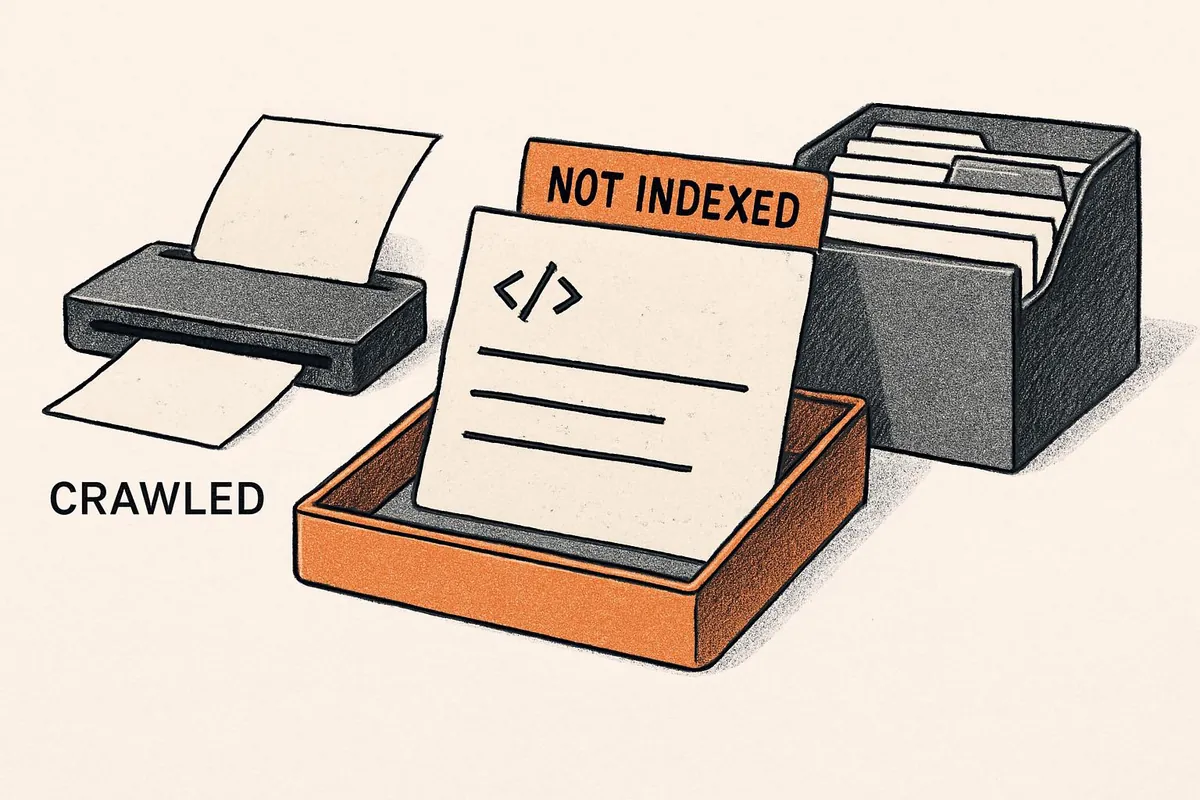
You publish a page, check Search Console, and find it listed under "Crawled - currently not indexed." Google has visited and your page still isn't showing up. It's tempting to request indexing again and hope this time does the trick.
Before you start changing things, check what Google is reporting about that URL. The status means Google crawled the page but hasn't included it in its index. It doesn't tell you why, and it doesn't promise the page will be indexed later.
The right fix depends on what you find. An isolated service page needs different attention from 200 filter URLs that were never meant to appear in search.
What does Crawled - currently not indexed mean?
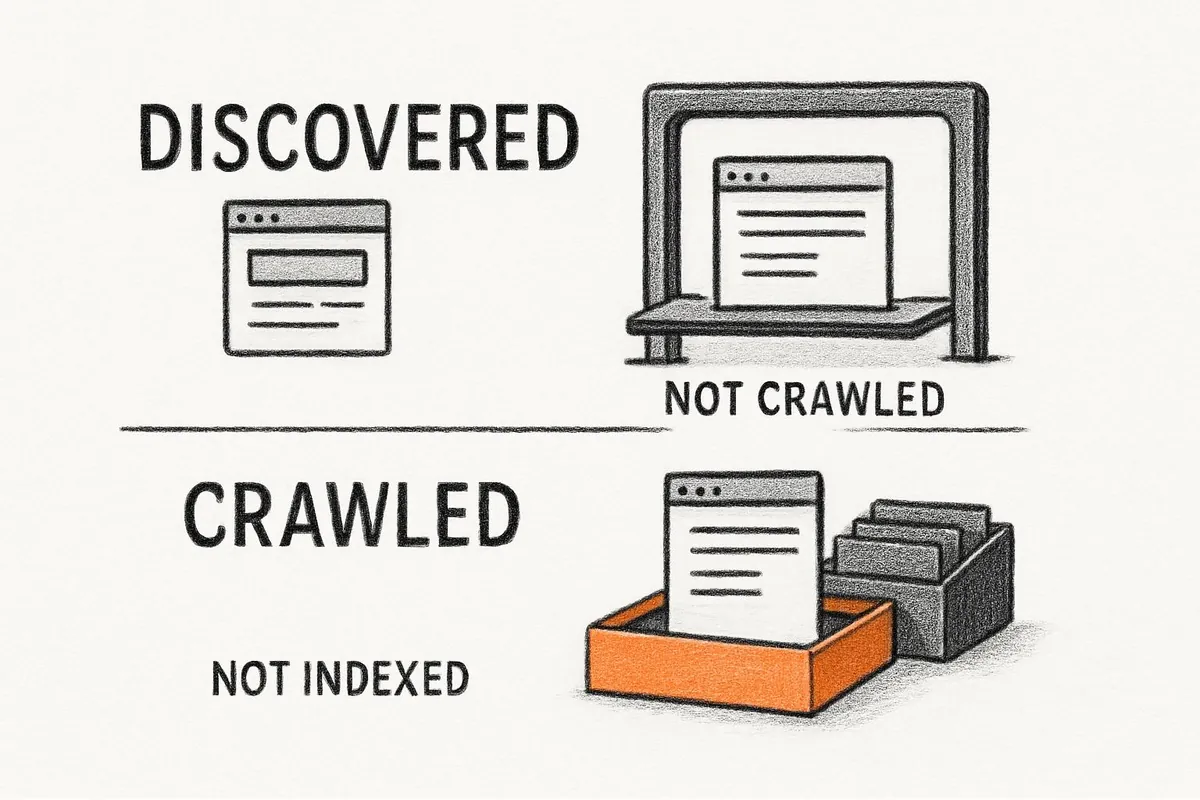
Google can find a URL, crawl its content, and still leave it out of the index. That differs from "Discovered - currently not indexed," which means Google knows about the URL but hasn't crawled it yet.
Start with a few affected pages that matter to your business. Include examples from different page types, such as a product page, a service page, and a blog post. Open each one in URL Inspection and check the stored indexing result and last crawl date. The broader Page indexing report can lag behind an individual URL's information.
Then use "Test live URL" to check the page as Google can fetch it now. A result saying "URL is available to Google" doesn't mean the page is indexed. The live test also can't settle content quality or which duplicate Google will choose as canonical.
If the stored result already shows the URL is indexed, you may be looking at a reporting delay. If it remains excluded, use the checks below to decide what deserves work.
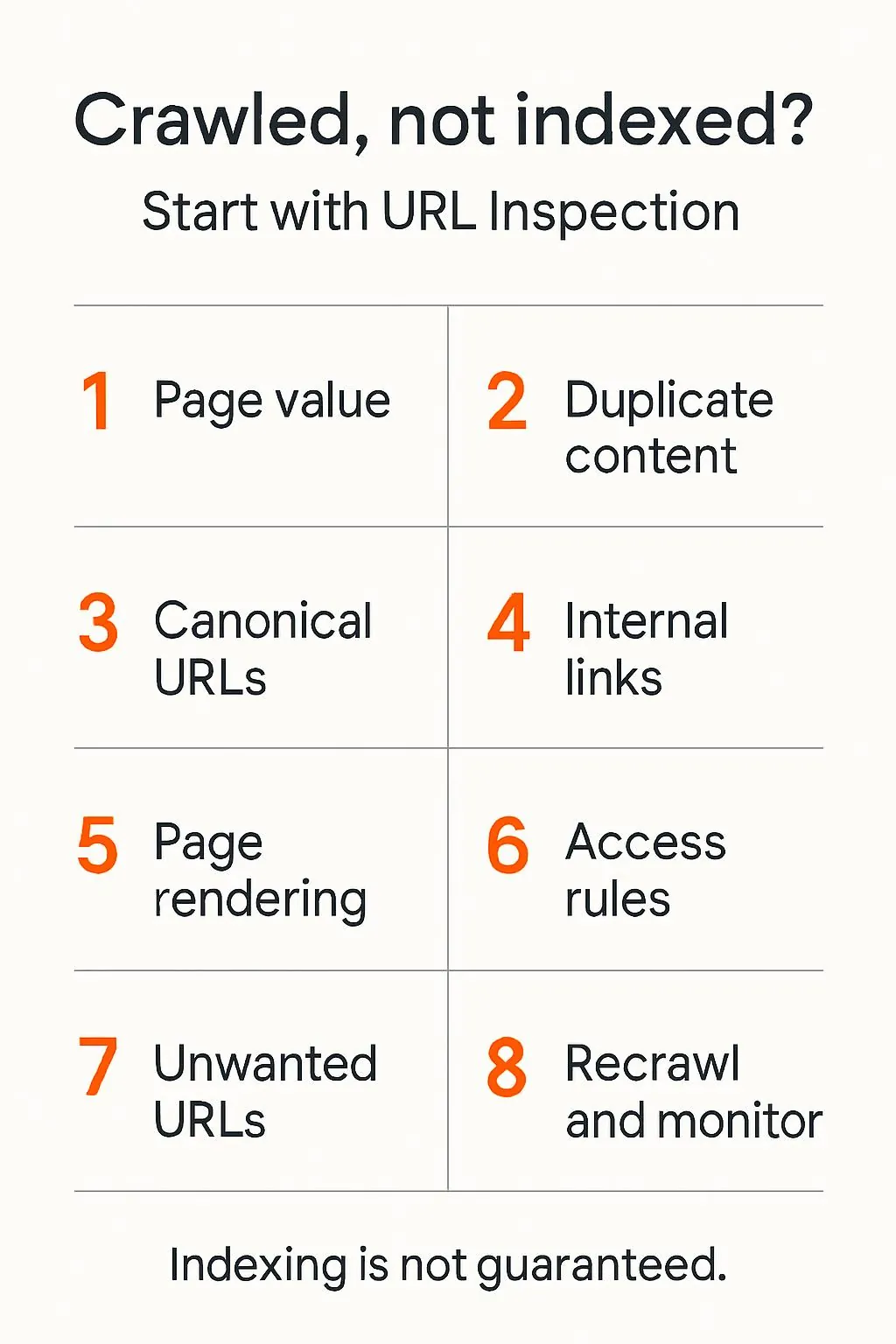
8 realistic fixes for crawled but not indexed pages
1. Give the page a useful reason to exist
Read the page as someone who needs an answer. Can they finish the task they came for, or will they need to search again?
A product page with a manufacturer's description could become more useful with compatibility details, original photos, or clear answers to buying questions. A service page could explain the actual work, who it suits, and what a customer needs to know before booking.
Add details you can support. A made-up customer story won't help anyone.
There's no preferred Google word count to reach. If the page already answers the question fully, adding 500 words of background won't necessarily improve it. Focus on the missing information, even when the best addition is a short example.
2. Combine pages that answer the same question
Sometimes the problem becomes clearer when you read your own pages side by side. You may have 3 articles answering the same question, with useful information scattered across all of them.
If they serve the same reader and purpose, bring the strongest material into one page. Redirect a retired article to that close replacement, then update internal links to point directly to the surviving URL.
Keep separate pages when they answer different needs. A repair service page and a DIY repair guide can cover the same subject while helping people do different things. Shared keywords alone aren't a reason to merge them.
3. Fix conflicting canonical signals
A canonical tag tells Google which version of duplicate or very similar content you prefer. Check it when the same page is available through several URLs, or when a template may be pointing pages to the wrong address.
For example, a product URL and a tracking-parameter version may show the same content. Your canonical tag, internal links, and sitemap should consistently point to the preferred version.
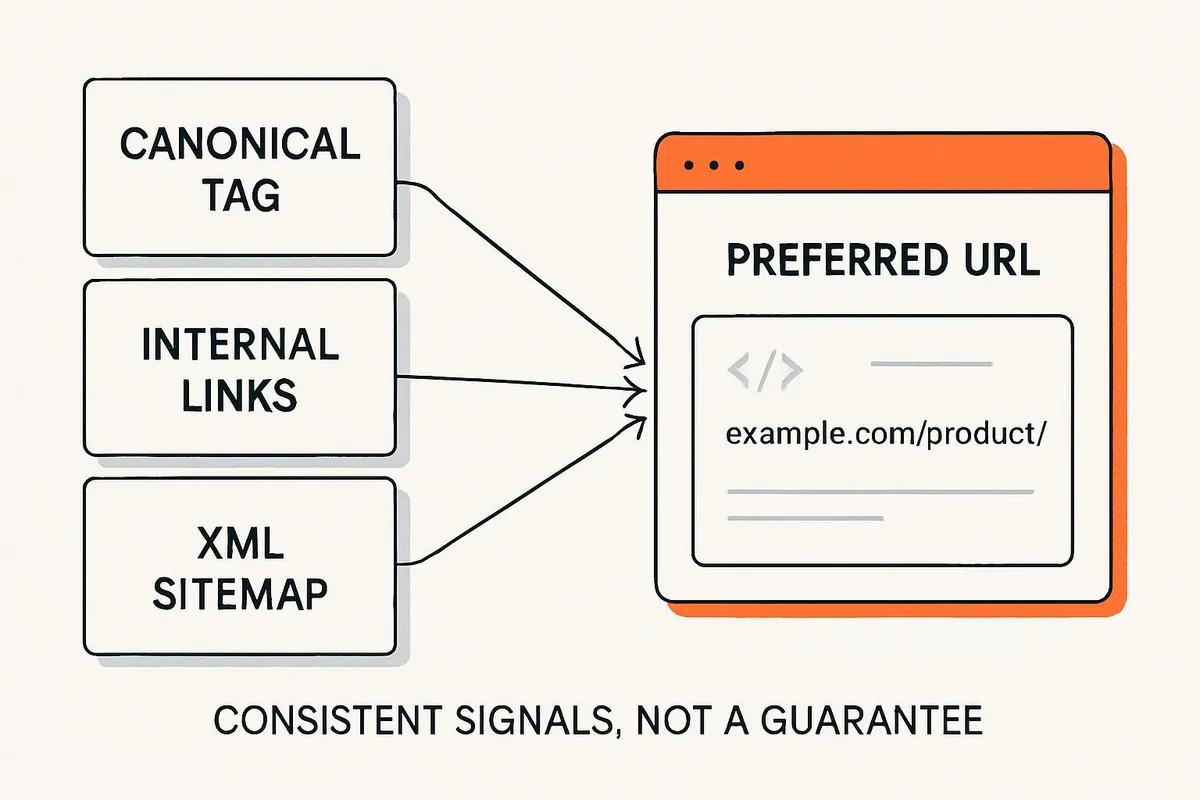
Inspect the declared canonical and, where the stored inspection data provides it, Google's selected canonical. These aren't always the same. Google treats your declarations as signals and can choose another URL.
Correct an accidental canonical pointing to an unrelated page. Avoid pointing distinct pages at your homepage simply to make an exclusion report smaller. Duplicate URLs also have their own Search Console statuses, so this check won't explain every page in the Crawled bucket.
4. Add internal links where readers need them
An important page shouldn't depend on a sitemap as its only route into the site. Look for relevant existing pages where a link would help someone continue what they're doing.
That might mean linking a relevant guide from a product category, or a detailed service page from a related overview. Use descriptive wording so readers understand where the link goes. Make sure the link uses a crawlable HTML anchor with an href attribute.
Google recommends that every important page have a link from at least one other page on your site. There's no magic number of extra links that guarantees indexing. Start by fixing pages that are isolated or hard to reach.
5. Repair missing content in Google's rendered page
Your browser may show a complete page while Google receives very little of it. This is worth checking when important text loads through JavaScript or pages disappeared after a redesign.
Run a live inspection and open "View tested page." Compare the rendered HTML and screenshot with what a visitor should see. Look for missing product details, an empty article body, or an error message replacing the main content.
If something is missing, investigate JavaScript errors and blocked resources. A robots.txt rule can accidentally block a script the page needs. Unblock the resource or fix the content delivery problem, then test again.
Google can render JavaScript. Server-side rendering or prerendering may help when content delivery is unreliable, but this status alone doesn't justify rebuilding your site.
6. Correct current access and indexing restrictions
Recent migrations and template changes deserve a separate check. Confirm that an important page loads publicly and returns the intended successful response. Check for accidental noindex directives in its HTML or HTTP headers. Check robots.txt access too.
If you find a restriction, establish whether it was deliberate before removing it. A private account page has different requirements from a public service page.
These checks describe the page now. Robots blocking, noindex directives, server errors, and soft 404s have separate reporting categories. Finding one today doesn't prove it caused an older "Crawled - currently not indexed" result. Compare the last crawl date with the date the site changed.
7. Stop submitting URLs that don't need search traffic
You don't need every URL indexed. Some filters and thin archives help visitors move around a site without offering a useful search destination. Others have real search value. Review their purpose before making changes across an entire page type.
For a page that should remain available to visitors but stay out of search, use noindex and allow Google to crawl it so it can read that instruction. A robots.txt block alone doesn't reliably prevent indexing.
Return a 404 for a permanently removed page with no suitable replacement. Use a redirect when there's a close replacement, and canonicalization for duplicate versions that need to remain accessible.
Clean up the sitemap to reflect the preferred URLs you want in search. Remove retired, redirected, and deliberately excluded URLs. This makes your submissions more useful, though it won't guarantee indexing for the remaining pages.
8. Request a fresh crawl after meaningful changes
Once you've corrected a problem, you can request indexing for a few priority URLs through URL Inspection. For changes affecting many pages, submit an updated sitemap.
You don't need to keep submitting an unchanged page. Individual requests have a quota, and repeated requests for the same URL don't speed up crawling.
Google says crawling can take days to weeks. That's a crawling estimate, not an indexing deadline, and a request guarantees neither immediate nor eventual inclusion.
How to tell whether the fixes worked
Keep a short record of the URLs you checked, what changed, and when the changes went live. Revisit the same sample and see whether the last crawl date is later than your update. Then check the stored indexing result and canonical information where available.
A smaller exclusion total alone doesn't prove your important pages entered the index: removing unwanted URLs can reduce that number too. Give Google time to process the changes before making another round of edits.
How Growing Search can help with indexing problems
If the same issue keeps appearing across product pages or a whole section of your site, it may need work on a shared template. Reviewing each URL separately can mean fixing the same problem over and over.
Growing Search's technical SEO services cover crawl and indexing checks, site architecture, internal links, and JavaScript SEO. Its work includes technical audits, prioritized findings, and implementation support through developer specifications or collaboration with your team.
For a site with recurring indexing problems, that support can help turn a long exclusion report into specific changes your developers can implement and monitor.